





Shopify
Shopify Canvas is Live: What It Can Handle and What It Cannot
Nikki Kumari|Oct 6, 2026|Read 8 Min


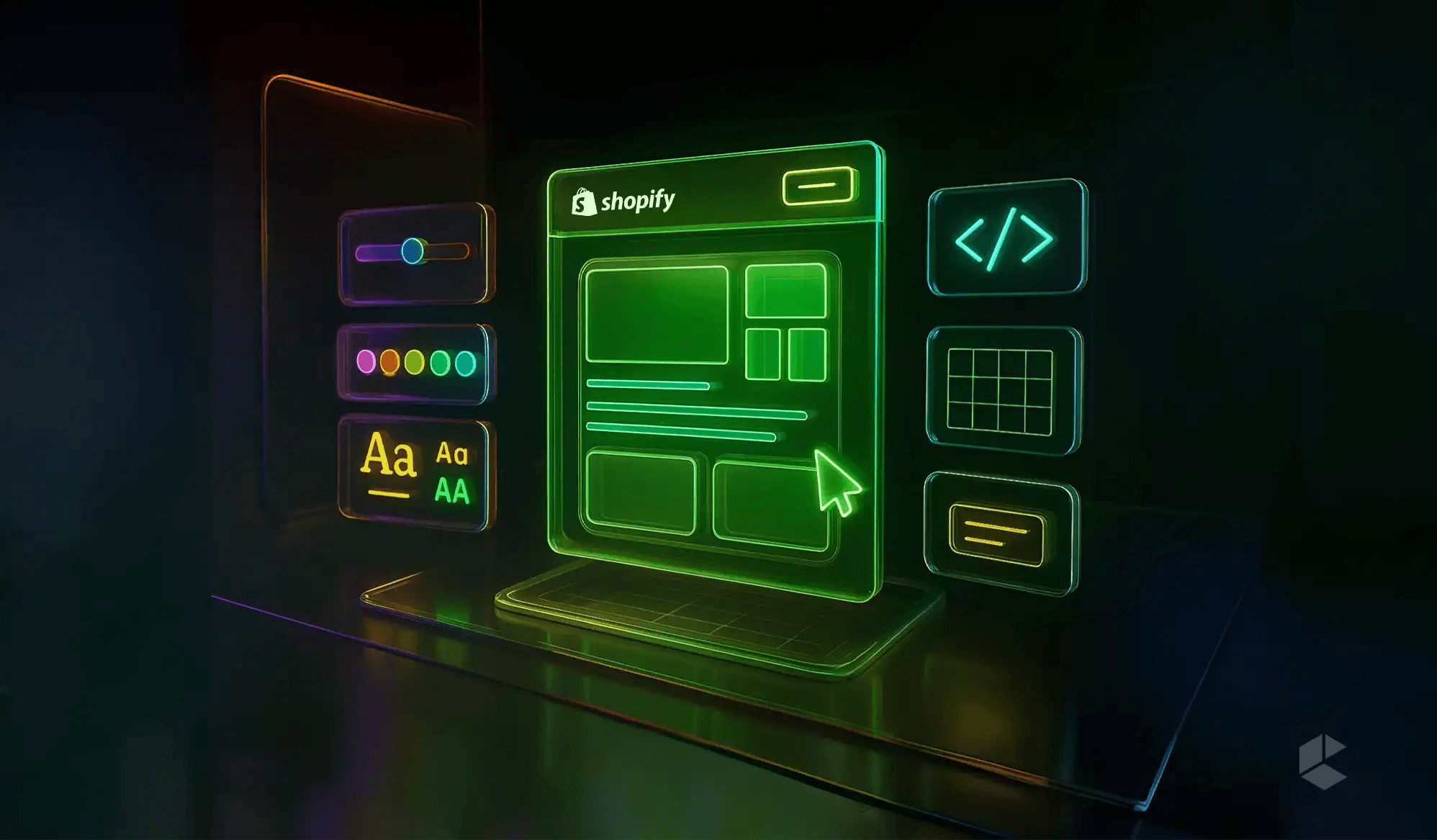
Shopify themes look great right out of the box with clean layouts, trendy fonts, and colors that pop. But the problem is that thousands of other stores are using that same great looking theme too. So where’s the uniqueness?
How can you make your store different?
The answer lies in customization. It is the one thing that you can do to turn your store into a branded storefront that builds trust, increases conversions, and, on top of that, creates a shopping experience that customers remember.
Shopify customization is the process of making your store your own. Shopify’s built-in themes come ready-made and look great, and customization lets you tweak those designs to reflect your brand’s personality. It turns a generic template into a shopping experience that feels personal, memorable, and uniquely branded.
Customization also supports conversions. Baymard Institute research estimates that the average large eCommerce site can gain about 35% in conversion rate through checkout design improvements alone. A thoughtfully customized store guides customers more smoothly and gives them reasons to return.
Shopify’s theme editor and its Horizon theme make customization easier than ever. You can make small tweaks like changing fonts and colors, or bigger changes like rearranging sections, adding custom content, and generating custom blocks with AI, often without writing a line of code.
Depending on the look you want and your technical abilities, Shopify can be customized at various levels.
Here are a few ways you can customize your Shopify store:
These are the everyday design edits that keep your store fresh. They include swapping fonts, uploading your logo, updating banners or product photos, and deciding what details to show (like stock levels or discount badges). You can even pick a theme from the Shopify Theme Store and simply change the accent colors to match your new collection.
Most modern Shopify themes are built from flexible blocks. Horizon, Shopify’s newer theme family, goes further with theme blocks that can be grouped, repositioned, and nested in the visual editor. You can rearrange image galleries and reviews, show or hide blocks, and shape each page’s layout without writing code. The editor also lets you copy and paste blocks and sections to reuse them.
Horizon introduced AI block generation. Open Sidekick in the theme editor and describe what you want, for example, “Add a countdown timer under the product gallery,” and Shopify generates a custom theme block you can place and edit. Shopify can also generate a starting theme from a description of your brand. Your theme must support custom blocks, and blocks can only be added to sections that allow them.
If you want to go beyond what themes and AI can do, this is where developers come in. With custom Liquid code, scripts, APIs, and metafields, you can create unique layouts, features, or workflows that fit your brand. Metafields and metaobjects add structured content such as size guides or product specifications to templates without hard-coding them. Work on a duplicate or development theme, keep code in version control with Shopify’s GitHub integration or Shopify CLI, and publish only after testing.
Dawn is Shopify’s free reference theme, and Horizon is its newer theme family built on theme blocks. The Shopify Theme Store also offers more than 20 free themes and more than 300 paid themes. Free themes suit new or smaller stores that are launching or experimenting with eCommerce, though they have fewer built-in features. Paid themes typically cost between $200 and $400 as a one-time purchase and suit growing businesses that need more design functions, merchandising features, and eCommerce tools.
The next choice is between pre-built and custom themes. Pre-built themes come from the Theme Store, typically cost $200 to $400, and can go live in days or weeks depending on how much you tweak. They suit small to mid-sized businesses that want a polished design without a big investment. Custom themes are created for your brand and give you complete creative control. They cost from several thousand to tens of thousands of dollars, depending on complexity, and a full custom build can take weeks or months. They suit established brands that need a bespoke look, advanced functionality, or unique customer journeys.
Once everything about the general structure and functionality of your theme is clear, you can focus on the design aspects of your theme customization. This is where you get to play with colors, fonts, and design details that reflect your brand’s personality. Head over to Admin > Online Store > Themes > Customize and you’ll see all the tools waiting for you.
If you already have brand guidelines, stick to them. If not, start with your logo colors or pick tones that match your products. Imagine you sell leather goods or wooden furniture: soft browns, beiges, and muted oranges immediately give the right vibe. Tools like Color Hunt can help you experiment with palettes and see what works. Once you settle on the perfect combination, save the hexadecimal codes, like #FFFFFF for white, #2D2D2D for dark gray, or #50B83C for green, so your colors are consistent everywhere, from banners to product images.
Fonts are the next secret weapon. Apart from making your text readable, they convey your brand’s personality. Most stores stick to two or three fonts. The trick is to find fonts that complement each other. You might choose one serif font for headings, a clean sans serif for body text, and maybe a subtle script for accents. Play with weights and styles within the same font family, like bold headings or all-caps subheads, to create hierarchy and guide your visitors naturally through your site. And don’t forget font sizes. Use larger sizes for headlines, smaller for details, so customers immediately know what’s important without even thinking.
Trying new fonts and colors on different pages is interesting, but you should never forget the fact that consistency is what makes your brand unique and different. Your customers should be able to identify and navigate your store easily and the best way to reach that goal is by sticking to a core set of fonts, colors, and styles. Here is where page templates or sections can help you. Page templates are best for things you reuse frequently. For example, using a page template in blog posts, landing pages, and sales funnels can maintain consistency and, at the same time, reduce the amount of creative brain power and time it takes to create each of these pages.
Adding a section is also another way to save time and maintain consistency. Sections are smaller, templated content blocks, more like a contact form, CTA, or newsletter sign up that you can add on multiple pages. You only need to add content in that section once, and all the changes will get automatically updated on every page that uses that section. You can create and edit sections just by going to the theme editor and clicking “+ Add section.” You can either choose a new section from the list or search for the section you want to edit. Additionally, use the ⋮⋮ icon to drag and rearrange a section if you want to change the order and layout of the sections on the page. On finishing everything, click Save. You can also copy and paste blocks and sections in the editor to reuse them across pages.
The Shopify App Store hosts more than 17,000 apps covering everything from design tweaks to advanced functionality. They span major categories like store design, marketing and conversion, store management, finding products, selling products, orders and shipping, and sales channels, and the store design category alone has subcategories for content, design elements, images and media, navigation, and site optimization.
Apps like Shopify Search & Discovery improve search, filtering, and product recommendations, including visual search. Apps like Okendo and Judge.me add social proof through customer reviews, and apps like Shogun offer an easy-to-use drag-and-drop editor for landing pages and templates. Each app can add scripts and weight to your store, so audit your apps regularly and remove the ones you no longer use. App blocks require an Online Store 2.0 theme, so check theme compatibility before you install.
Shopify app embeds are small pieces of code added by apps to your online store. They help add new features or tools like a chat bubble, a tracking widget, or analytics, without you needing to manually edit your theme’s code. Moreover, they can be controlled from Shopify’s theme editor, and they work with any theme version. Once you set them up, you don’t have to redo them for each page. Any changes you make automatically apply everywhere the embed is used.
To customize Shopify app embeds, just go to your Shopify theme editor, click on “App embeds” in the left-hand panel. You’ll see a list of app embeds added by the apps you’ve installed. Use the toggle switch to turn an app embed on or off. To customize settings (like position, style, or behavior), click the expand icon (▸) next to the app embed name. Your changes will take effect across the whole store automatically.
Checkout follows different rules from theme customization. checkout.liquid is no longer supported for the Information, Shipping, and Payment steps, and Shopify retired it, along with additional scripts, for the Thank You and Order Status pages on August 28, 2025. Script tags on those pages ended on August 28, 2025 for Plus stores and August 26, 2026 for other plans. Shopify Scripts stopped running on June 30, 2026.
Customizations now run through checkout extensibility: UI extensions, Shopify Functions, and web pixels. Editing the Information, Shipping, and Payment steps requires Shopify Plus, while other plans can customize the Thank You and Order Status pages. If your store still relies on old checkout code, audit it and rebuild it with extensions.
Shopify gives you all the tools you need to make your store truly your own. You can start with easy changes like fonts, colors, and layouts, and gradually explore sections, templates, and app embeds to add more functionality. For stores that want something truly one of a kind, advanced customization with code and APIs opens up endless possibilities. Every change you make helps guide customers, build trust, and increase conversions. At the end of the day, a well customized store is one that leaves a lasting impression and keeps shoppers coming back.
Shopify theme customization is the process of modifying your store’s theme to reflect your brand’s personality. It also improves user experience and increases conversions. Customization helps your store stand out from other stores using the same theme and creates a more memorable shopping experience for customers.
Not always. You can make many changes, like fonts, colors, sections, and layouts, using Shopify’s theme editor without any coding. For advanced customization, such as custom Liquid code, APIs, or unique workflows, coding skills or a developer may be required.
Pre-built themes are ready-made and easy to set up, usually costing between $200 – $400, and are ideal for small to mid-sized businesses. Custom themes are built specifically for your brand, offering full creative control and advanced features, but they are more expensive and take longer to launch.
App embeds are small pieces of code added by apps to enhance functionality. They work across all pages automatically and can be managed from the theme editor without altering the core code.
Yes. With Shopify’s Horizon theme family, you can describe a section to Sidekick in the theme editor, and AI block generation builds a custom theme block you can place and edit. Your theme must support custom blocks, and generated blocks should be reviewed and tested before they go live.

Get tailored technology solutions to scale your retail business online
Request A Quote

Stay ahead with insights, trends, and brand success stories from the world of Digital Commerce.


DTECH, Techno Hub 1, Dubai Silicon Oasis Authority, United Arab Emirates - Dubai - United Arab Emirates

Level 1, Building 7, Zone A Airport road, Business Gate P.O Box 93597 Riyadh 11683, KSA.


Codilar Digital Pte Ltd, 68 Circular Road, #02-01, 049422, Singapore

7th Floor, Jupiter Block Prestige Tech Park, Kadubeesanahalli, Bellandur Amtankere, Bengaluru, Karnataka 560103

Satrio Tower, Floor 6, Unit C and D, Desa/Kelurahan Kuningan Timur, Kec. Setiabudi, Kota Adm. Jakarta Selatan, Provinsi DKI Jakarta