





Shopify
Shopify Canvas is Live: What It Can Handle and What It Cannot
Nikki Kumari|Oct 6, 2026|Read 8 Min


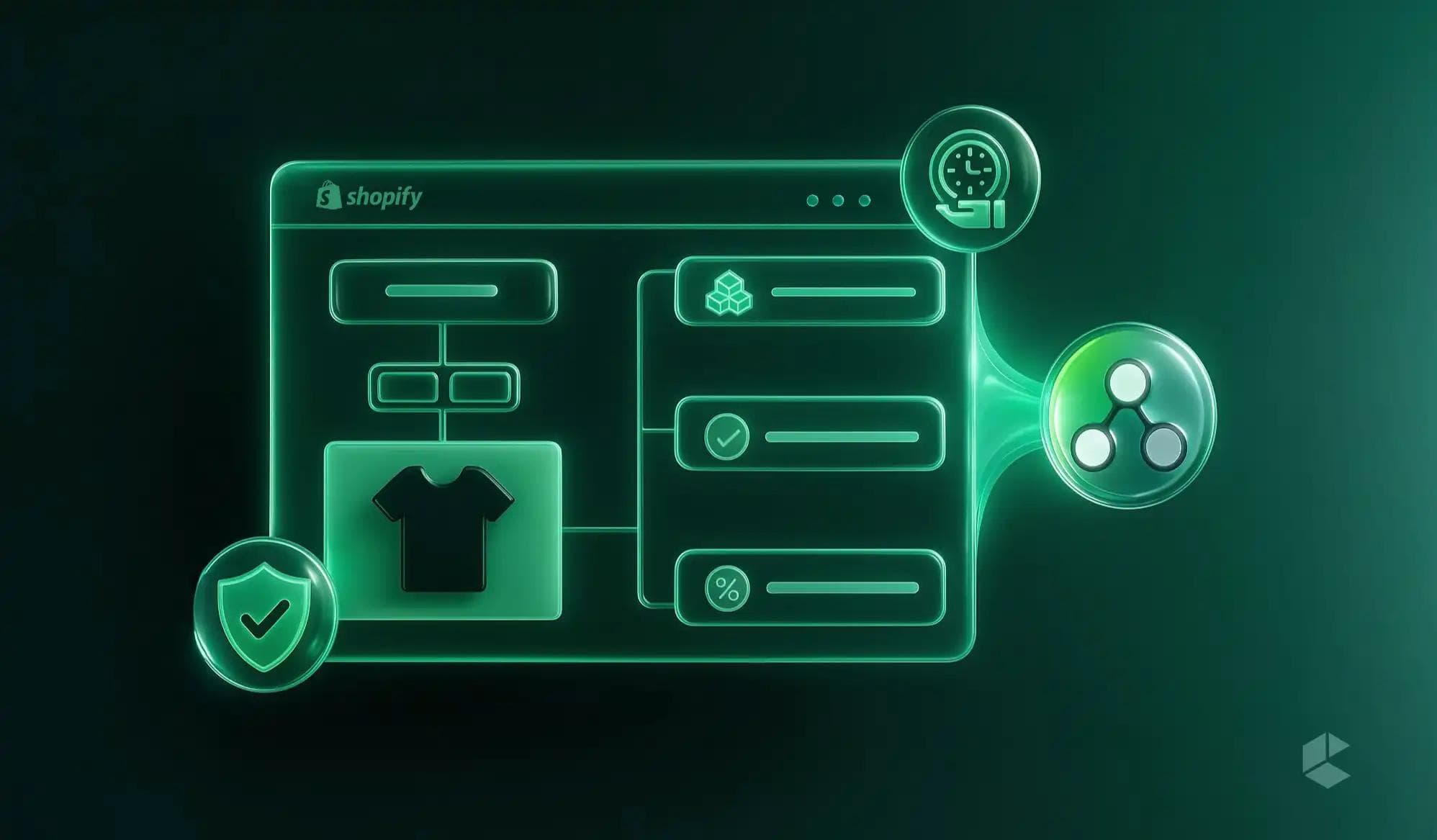
Running an eCommerce store means juggling inventory, customer follow-ups, and order checks, often within the same hour. Shopify Flow takes the repetitive parts of that work off your team’s plate. It turns manual processes into automated workflows that run every time a trigger fires, so a restock alert never gets forgotten.
Flow can flag high-risk orders, tag loyal customers, and hide out-of-stock products automatically. Most workflows need no code, and Sidekick can now draft a workflow from a plain-English description.
This blog explains how Shopify Flow works, how to set it up, and how to use it across marketing, fulfillment, fraud prevention, and customer loyalty. It also covers plan limits and a 90-day rollout plan.
Shopify Flow is Shopify’s free automation app for merchants. It is available on the Basic, Grow, Advanced, and Plus plans, and you install it from the Shopify App Store. Two features depend on your plan: the Send HTTP request action needs Grow or higher, and tasks from custom partner apps need Plus.
Every workflow uses three building blocks:
A workflow has one trigger, followed by any number of conditions and actions. Think of the blocks like Lego pieces: simple on their own and powerful when combined. The builder is visual, so most workflows need no developer. For advanced logic, the Run code action lets you write JavaScript inside a workflow.
As a store grows, so does the list of repetitive tasks: checking stock, emailing customers, updating orders, and reviewing suspicious transactions. These tasks are necessary, but they do not generate revenue directly.
Without automation, merchants usually spend hours on routine actions or hire more people to keep up, which gets expensive as volume grows. Time is the real constraint. Automation hands routine work to software so your team can spend its hours on strategy and customer experience. Shopify Flow gives that time back and keeps your store running consistently.
Shopify Flow works quietly behind the scenes. Once you define your workflow, it listens for specific events (the triggers), checks whether the conditions you’ve set are true, and then performs an action accordingly.
Here’s an example of a simple loyalty-related workflow:
From there, Flow can communicate with your connected apps, email tools like Klaviyo, collaboration tools like Slack, or even project management systems, expanding your automation reach beyond Shopify.
And it scales beautifully. Shopify merchants collectively run over a billion automated decisions per month, proving that Flow handles both daily tasks and massive sales spikes with ease.
Flow supports a wide range of use cases, from a single alert to multi-step automations that connect several systems:
Each workflow replaces a repeated manual step and applies the same rule every time.
Setting up Flow takes a few minutes:
If you are new to Flow, start with a template and expand once you are comfortable.
Let’s build a simple, useful workflow that notifies your team when a high-value order is placed.
Every large purchase now notifies your team without anyone watching orders manually. You can build from here by adding a VIP tag or passing the order to your CRM or email app.
The right automations affect revenue, retention, and risk. These are the ones worth building first.
Keeping customers is often more profitable than finding new ones. Flow can tag repeat shoppers automatically:
Your email or loyalty app can then use that tag to send exclusive offers or early access invites. You can also tag customers at spend thresholds, such as Silver and Gold, to support tiered loyalty programs. For lapsed customers, a scheduled workflow can tag those whose last order was more than 60 days ago, so your email app can send a win-back message.
Avoid selling what you do not have:
You can also use the Update product status action to hide out-of-stock products. Setting a product to draft removes its page from search, so decide whether you would rather keep the page live and mark the product out of stock. For pre-orders, Flow can tag orders for those products and hold their fulfillment orders until stock arrives.
Boosting your average order value can be as simple as an automated suggestion.
Example:
You can also prompt cross-sells in cart:
“Complete your set with Product B and save 10%.”
For returning customers, Flow can generate personalized discount codes for premium versions or related products.
It’s automation that feels like thoughtful curation, not sales pressure.
Cart abandonment happens, but Flow helps bring customers back.
Example recovery workflow:
You can follow it with timed emails (1 hour, 24 hours) and segment by customer type, first-timer, returning, or VIP.
Flow can even identify repeated product abandonments, alerting your team to possible pricing or UX issues.
Shopify Flow can time and coordinate campaigns perfectly.
Example:
Afterward, it can revert your storefront, all on schedule.
You can also tag customers based on marketing actions, like clicking a sale email, and automate follow-ups tailored to their interests.
Scheduling entire marketing calendars? Easy. Flow can generate monthly tasks or reminders for upcoming promotions without you ever touching a calendar.
Personalization drives loyalty, and Flow builds it automatically.
Example:
You can create tags for frequent buyers, locations, or birthdays to trigger custom offers or rewards.
Over time, these automated tags form detailed profiles for targeted, personal campaigns that run seamlessly across all your apps.
Manual fraud checks can’t scale, but Flow can.
Combine conditions for more accuracy: mismatched billing and shipping, order value above $500, or new accounts.
For trusted customers, add express processing:
You can also send security alerts for multiple failed payments.
Automation keeps your store safe and your legitimate customers happy.
Here’s where Shopify Flow really becomes a powerhouse: it doesn’t just automate inside your Shopify store; it connects with the tools you already use.
You can integrate Flow with:
For instance, connecting Flow to Klaviyo can unlock sophisticated nurturing automations:
Slack integration keeps your team in sync:
With Zapier, you can connect Flow to almost any app imaginable:
Even brick-and-mortar stores benefit. When a customer makes an in-store purchase through your POS, Flow can sync that data to their online profile:
And for brands that rely on third-party logistics or custom ERPs, Flow can use webhooks to send structured order data directly to external systems.
These integrations turn Shopify Flow into more than an automation app; it becomes the central nervous system of your business, coordinating actions across every platform you rely on.
The real test of any tool isn’t what it promises, it’s what it delivers. And Shopify Flow has some impressive case studies that prove its worth.
Take Cozykids, a children’s furniture and décor brand that implemented a series of Shopify Flow automations. By optimizing inventory alerts, automating abandoned-cart recovery, and tagging customers based on browsing and purchase habits, the brand saw a 145% revenue increase.
Another merchant created a space-themed sales event, using Flow to switch themes, activate discounts, and coordinate marketing emails, all on autopilot. The result:
A fashion retailer used Flow to end their recurring “out of stock” nightmare. Their automations included:
The outcome? A 32% reduction in missed sales opportunities and smoother purchasing cycles.
And a beauty brand built Flow-driven customer engagement automations to:
They ended up with a 24% increase in repeat purchases and a 17% lift in customer lifetime value.
Each case underscores the same principle: once repetitive tasks are automated, your team can focus on improving experience and strategy, which truly drives growth.
Flow works with your store events and data, so it is best at logging and alerting. Shopify Analytics is the place for conversion rate and average order value. Here is how to combine them:
Even the smartest merchants occasionally hit speed bumps when implementing automation. Luckily, most problems have simple fixes once you know what to look for.
1. Workflow doesn’t trigger:
Check your activity logs to confirm if the trigger event occurred. Often, the event fires, but the condition is too narrow! Try loosening it slightly.
2. Conflicting automations:
When multiple workflows affect the same product, order, or tag, they can clash. Solution? Maintain consistent naming conventions (like “Inventory: Low Stock Alert”) and document each workflow’s purpose.
3. Over-automation:
Automating too much too soon can make debugging painful. Start small, one workflow per operational area, and expand only after it runs reliably.
4. Scaling issues:
A workflow that handles 20 orders a day might strain at 200. Regularly audit high-traffic automations and merge similar workflows into optimized versions.
5. Outdated logic:
Your store evolves, but your workflows might not. Schedule a quarterly automation review to identify redundancies or outdated conditions.
The golden rule: test before going live. Always run your workflows in a sandbox or staging environment first, especially when they modify orders or inventory.
Automation is only as strong as the strategy behind it.
1. Start with high-impact workflows
Begin with the ones tied to revenue and risk: low-stock alerts, fraud holds, and VIP tagging that feeds your email app.
2. Measure and iterate
Track metrics before and after each workflow. Run A/B tests on messages and offers in your email platform, where the sends happen.
3. Connect workflows for compound results
4. Set clear KPIs
Track conversion rate by traffic source, average order value, customer lifetime value, and ROI per automation.
5. Optimize continuously
Review workflows quarterly, document what works, and retire what does not. Treat Flow as a living system instead of a one-time setup.
Shopify Flow has changed noticeably over the past year, and the biggest changes make it easier to build and check workflows:
For more complex logic, Flow also offers advanced actions: Run code (JavaScript), Send Admin API request, Send HTTP request, and Wait.
Expect more AI-assisted building and more triggers and actions from connected apps. For now, keep workflows simple, review what Sidekick generates before activating it, and document each one.
Ready to make Shopify Flow your growth engine? Here’s a step-by-step roadmap from setup to optimization:
Days 1–7: Assess and Plan
Days 8–14: First Automations
Days 15–30: Expand and Refine
Days 31–60: Advanced Systems
Days 61–90: Optimize and Analyze
Follow this plan, and by the end of 90 days, you’ll have a fully operational, conversion-optimized automation ecosystem, one that scales without adding staff or complexity.
Shopify Flow gives your team the time and consistency to do better work. It handles the busywork, keeps your inventory and risk checks running, and passes the right signals to your email and loyalty tools so customer relationships stay strong. Start small with one or two workflows, measure what they save, and expand steadily. Once Flow handles the day-to-day routine, your team can focus on strategy, innovation, and growth.
Planning Flow automations that connect to your ERP, email stack, or custom Shopify Plus actions? Let Codilar’s Shopify team map out the workflows and build them with you.
Shopify Flow is a free app available on the Basic, Grow, Advanced, and Plus plans. The Send HTTP request action needs Grow or higher, and tasks from custom partner apps need Plus.
No for most workflows. You build them visually from triggers, conditions, and actions, and Sidekick can draft one from a plain-English description. Developers can add JavaScript with the Run code action for advanced logic.
Flow’s Send internal email action goes to your team. Customer messages come from connected email and SMS apps, such as Klaviyo, using their Flow connectors, or from your marketing automations. Check which triggers and actions your app provides.
Yes. Connectors link apps such as Slack and Google Sheets, many apps add their own triggers and actions, and the Send HTTP request action (Grow and higher) can send data to webhooks and external systems.
Use the test run to preview a workflow with sample data before turning it on. After launch, open Apps > Flow > Recent runs to see which runs fired, which steps completed, and where errors occurred.

Get tailored technology solutions to scale your retail business online
Request A Quote
Stay ahead with insights, trends, and brand success stories from the world of Digital Commerce.


DTECH, Techno Hub 1, Dubai Silicon Oasis Authority, United Arab Emirates - Dubai - United Arab Emirates

Level 1, Building 7, Zone A Airport road, Business Gate P.O Box 93597 Riyadh 11683, KSA.


Codilar Digital Pte Ltd, 68 Circular Road, #02-01, 049422, Singapore

7th Floor, Jupiter Block Prestige Tech Park, Kadubeesanahalli, Bellandur Amtankere, Bengaluru, Karnataka 560103

Satrio Tower, Floor 6, Unit C and D, Desa/Kelurahan Kuningan Timur, Kec. Setiabudi, Kota Adm. Jakarta Selatan, Provinsi DKI Jakarta